WP-CLI makes WordPress maintenance fast from the terminal. This is how we update core, plugins and themes and avoid common permission errors.
Why we use the terminal for WordPress
You can manage WordPress entirely from the admin panel, but it becomes time-consuming when there are many sites. With the terminal tool, we can instead update, back up and troubleshoot from the terminal. One command can update all plugins on a site, and a loop can carry out the same action on ten sites. In addition, it also works when the admin panel cannot be reached. That makes the tool invaluable for troubleshooting.
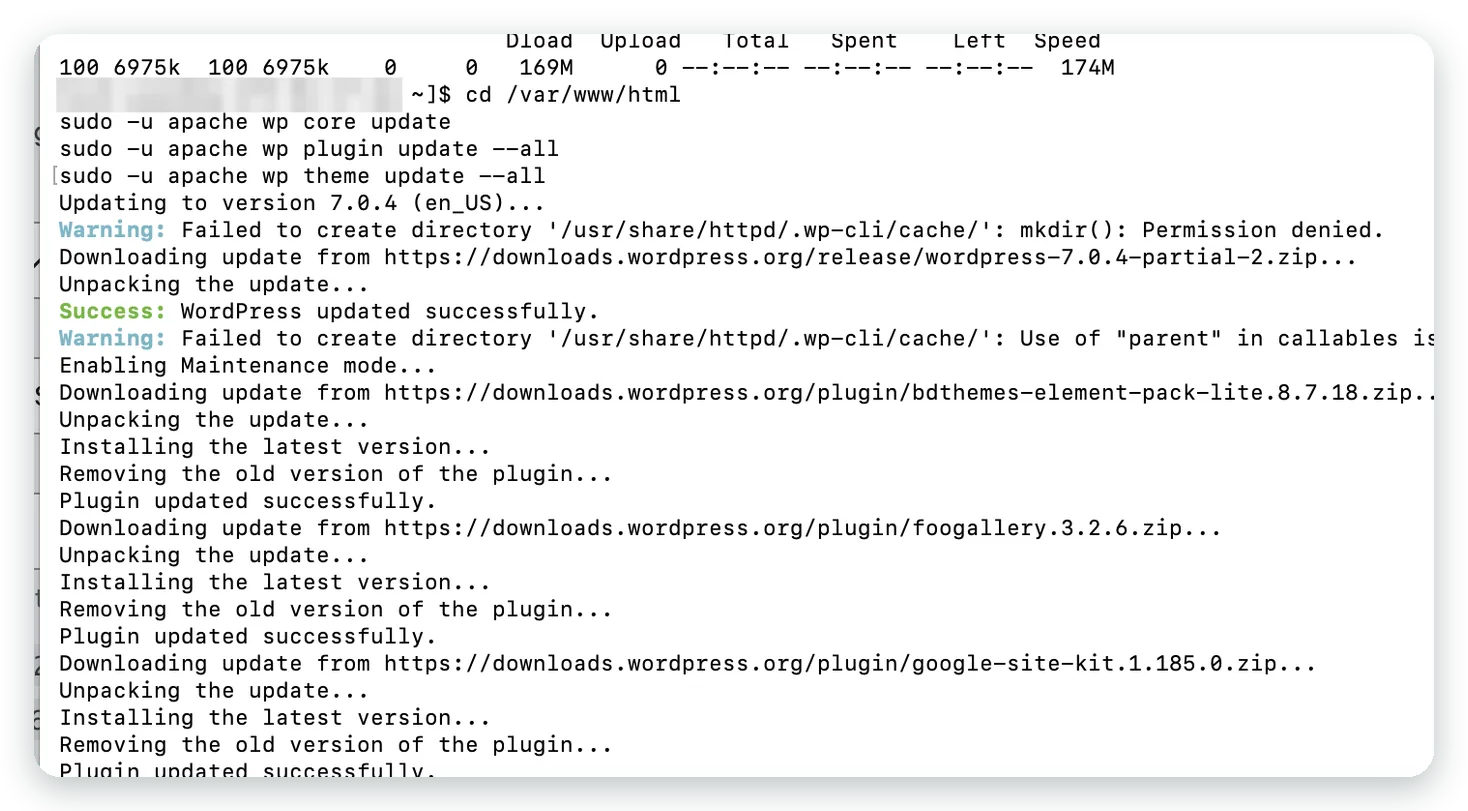
We use the tool daily on our own servers, where several WordPress sites share the same machine. The screenshot in the article shows such an update. It also shows a warning that many people run into the first time. The warning is harmless, but it reveals a detail about permissions that is important to understand. Therefore, we go through it here.
The right user: run as the web server
The most important thing is to run the commands as the right user. If you run as root, new files get root as their owner. Then the web server can no longer change them, and the next update from the admin panel fails. Therefore, we always run with sudo -u apache on Amazon Linux and the Red Hat family. On Debian and Ubuntu, the user is instead called www-data.
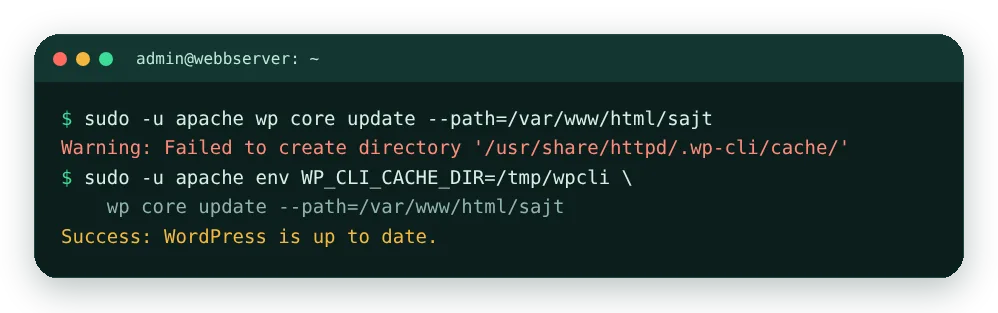
However, when you run as the web server’s user, another warning appears. The tool tries to save its cache in the home directory, and the web server may not write there. The warning says Permission denied for the cache directory. The solution is to point the cache to a directory where the user can write, for example /tmp/wpcli. We do this with the WP_CLI_CACHE_DIR environment variable, which we always set directly after env.
Our fixed pattern for scripts
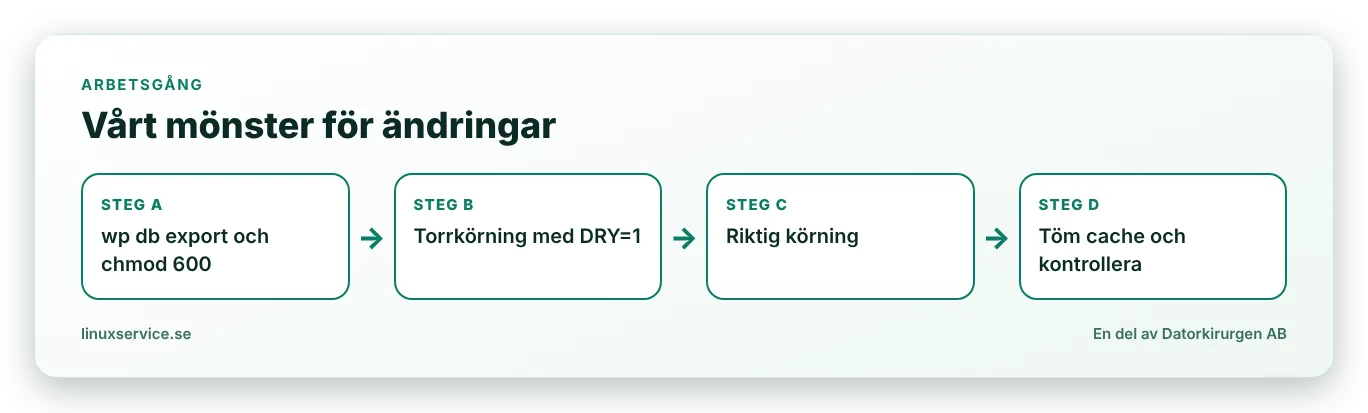
We run all larger changes with the same pattern. First, we take a backup of the database with wp db export and give the file strict permissions. After that, we run a dry run, where the script only shows what it would do. Only when the output looks right do we run it for real. Finally, we clear caches, for example with wp elementor flush-css if the site uses Elementor.
The pattern seems cumbersome, but it has prevented errors many times. A dry run reveals errors in paths and conditions before they can damage anything. In addition, the backup gives a quick way back. We deliver our scripts as packages with instructions, and therefore the client can also run them.
Common tasks with WP-CLI
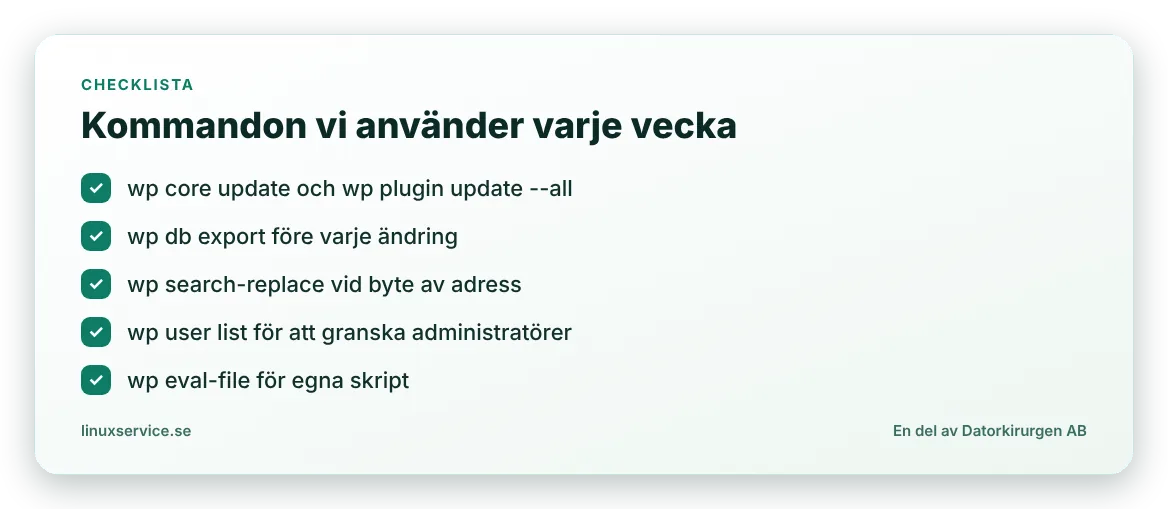
Apart from updates, we use the tool for much more. With wp search-replace, we replace addresses in the whole database, for example when a site moves to https or to a new domain. In addition, the command handles serialised data, which an ordinary search in the database does not. With wp user list, we quickly see all administrators. It is the first step when we suspect that someone unauthorised has got an account.
We also use wp cron to check scheduled jobs and wp plugin list to see which plugins need updating. With wp eval-file, we run our own PHP scripts in the WordPress environment. That is how we import articles, rename images and fix SEO fields on many sites at the same time. Feel free to read about file permissions in Linux, which is related to this.
Troubleshooting when the site cannot be reached
When a site shows a critical error and the admin panel does not load, the terminal can often still reach it. For example, we can switch off all plugins with one command and then switch them on one at a time. Then we quickly see which plugin causes the error. We can also change the theme or clear transients that have got stuck. All this works without loading a single page in the browser.
If the terminal also gives an error, we read the error message carefully. It points to a file and a line, and as a result we know where to start. Read more about troubleshooting in the article on PHP on Linux.
Contact Linux Service about WP-CLI
Linux Service is part of Datorkirurgen AB and manages WordPress servers for businesses across Sweden. We update, troubleshoot and automate from the terminal, and we always deliver scripts with a dry run and instructions. The tool is described at wp-cli.org.
Therefore, contact us if you have many sites to manage or if a site has stopped working. We carry out a review and propose a routine. We work remotely. Moreover, we can take over the ongoing operation.
Frequently asked questions about WP-CLI
Questions about WP-CLI
- What is WP-CLI?
- Do you need to install the tool yourself?
- Why should you not run the commands as root?
- Which user should you run as?
- Why does WP-CLI warn about the cache directory?
- What does WP_CLI_CACHE_DIR do?
- Can you update several sites at the same time?
- Does it work when the admin panel does not load?
- Can you update themes from the terminal?
- Does the tool work on all Linux distributions?
WP-CLI: commands and patterns
- How do you take a backup with wp db export?
- What is a dry run?
- Why should the backup have permission 600?
- What does wp search-replace do?
- Does search-replace handle serialised data?
- How do you list all administrators?
- What does wp eval-file do?
- How do you clear the Elementor cache?
- Can you switch off all plugins?
- How do you clear transients?
More about troubleshooting and support
- What do you do when the site shows a critical error?
- How do you find the plugin that causes the error?
- Can you write scripts for our sites?
- Do you deliver the scripts with instructions?
- Can we run the scripts ourselves?
- Do you help with Elementor?
- Do you work remotely?
- What does your help cost?
- Can you take over the operation of our sites?
- How do I contact you about WordPress?